
Browser tools for finish coordination at hospital scale
I built a set of local, browser-based tools for the repetitive parts of finish coordination: QA checks, template consolidation, material lookup, room-type coding, and phase-to-phase data validation.
These are local coordination tools, not a public SaaS product. Their value is practical: they fit an existing workflow, keep data on the user machine, and return reviewable Excel exports.
The work was not one tool. It was a small operating system for finish data.
Each utility handles one narrow bottleneck, but together they create a cleaner path from messy room data to reviewable output.
Finish QAQC Auditor
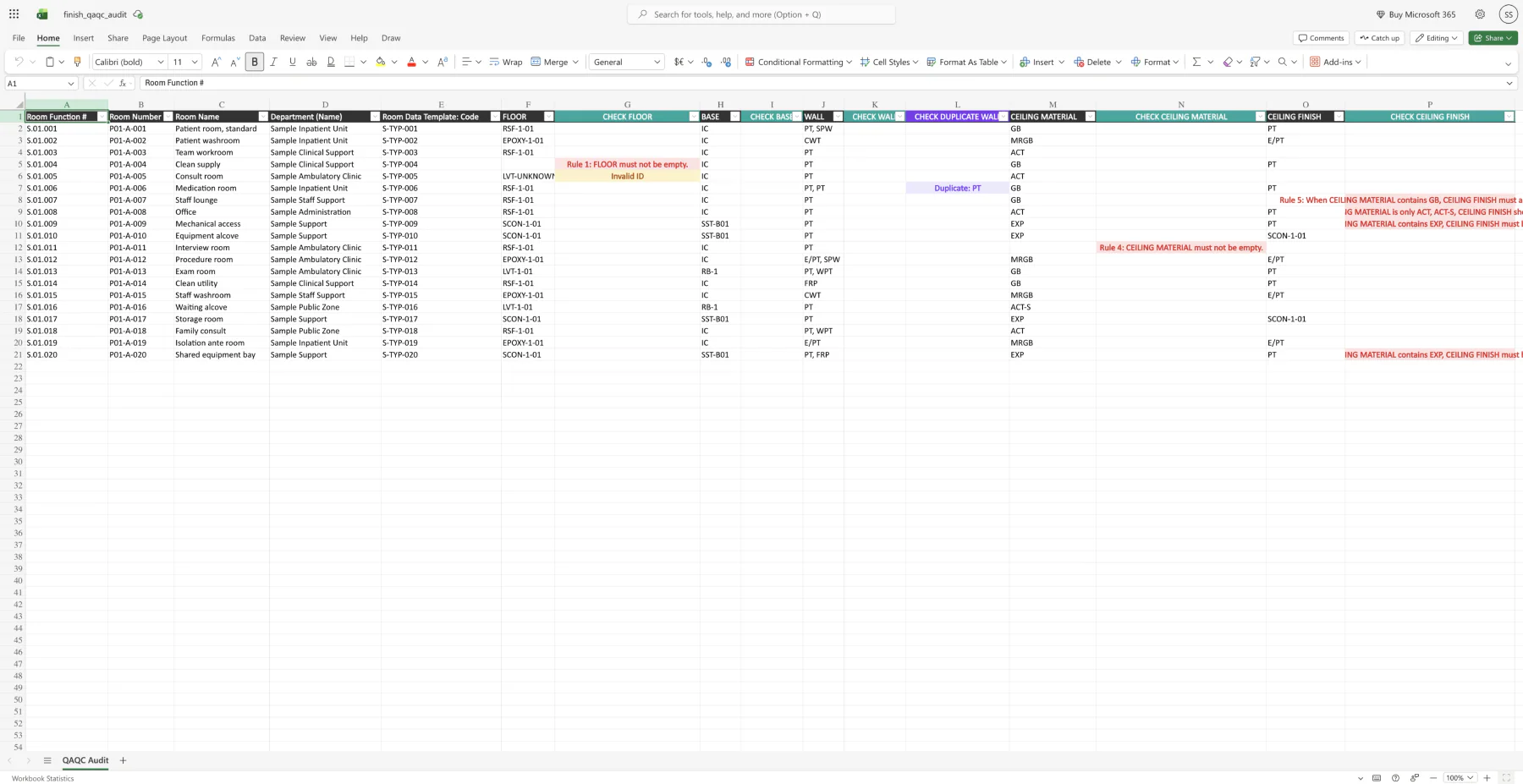
Uploads room finish data, maps the relevant columns, applies custom rules, and exports a highlighted audit workbook.
Finish Template Analyzer
Finds repeated finish combinations across rooms so the team can see where templates might be consolidated.
Template Finder
Turns material selections into a fast lookup tool for matching room finish templates during coordination conversations.
Room Type Analyzer
Parses reference strings, groups room types, generates abbreviations, and lets the team review codes before export.
Column Comparisor
Compares phase-to-phase finish values against rule mappings so data transitions can be checked consistently.
The tools meet the workflow where it already lives.
The strongest decision was not overbuilding a platform. It was keeping the tools small, local, and legible enough for a project team to use inside the spreadsheet-heavy coordination reality.
The tools run in the browser. No project data needs to leave the user machine.
The interface respects how coordination work already happens instead of forcing a new platform.
Repeatable checks, mappings, and exported reports mattered more than interface polish.
Screenshots here use fictional sample workbooks that preserve the workflow without exposing project records.
Finish QAQC Auditor
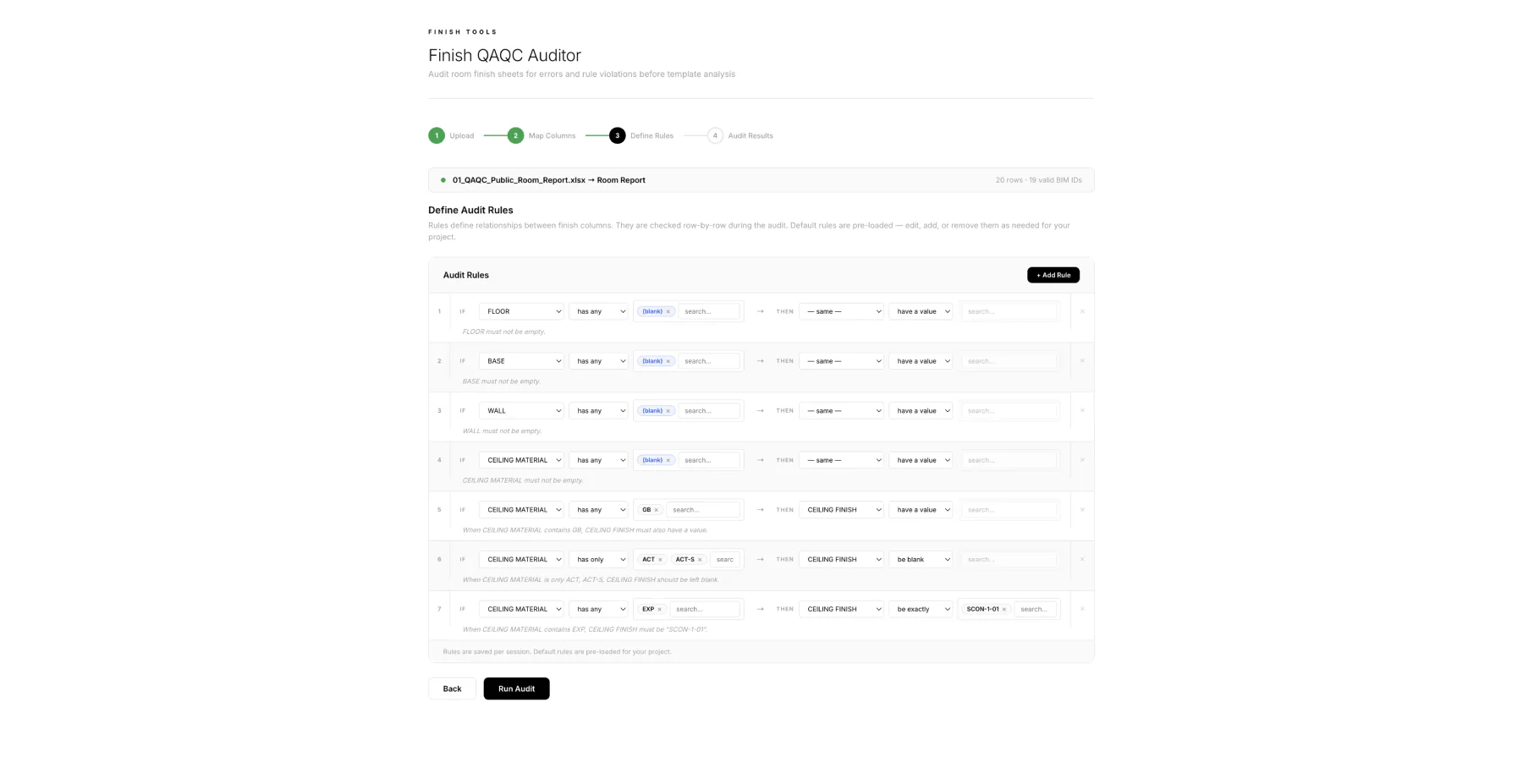
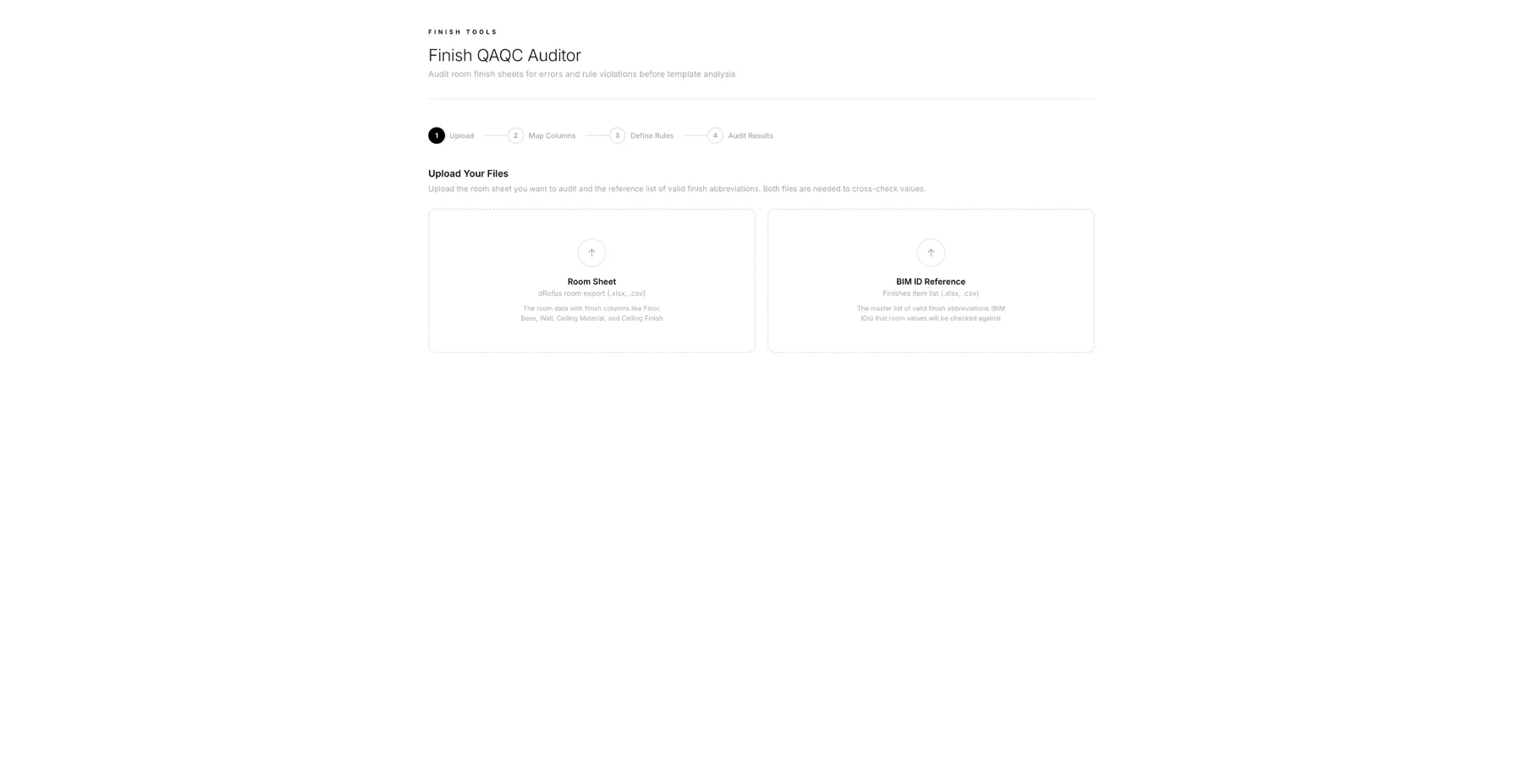
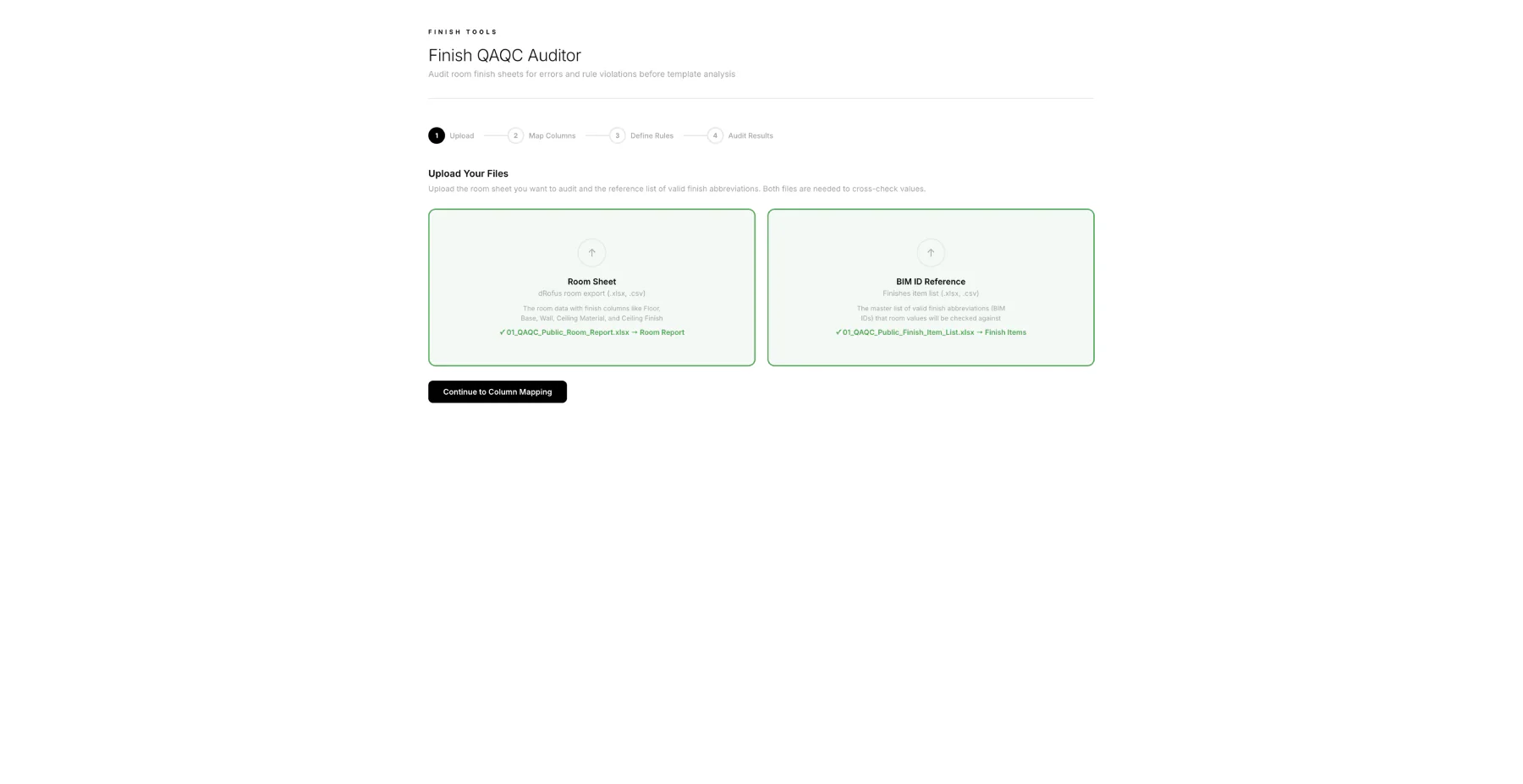
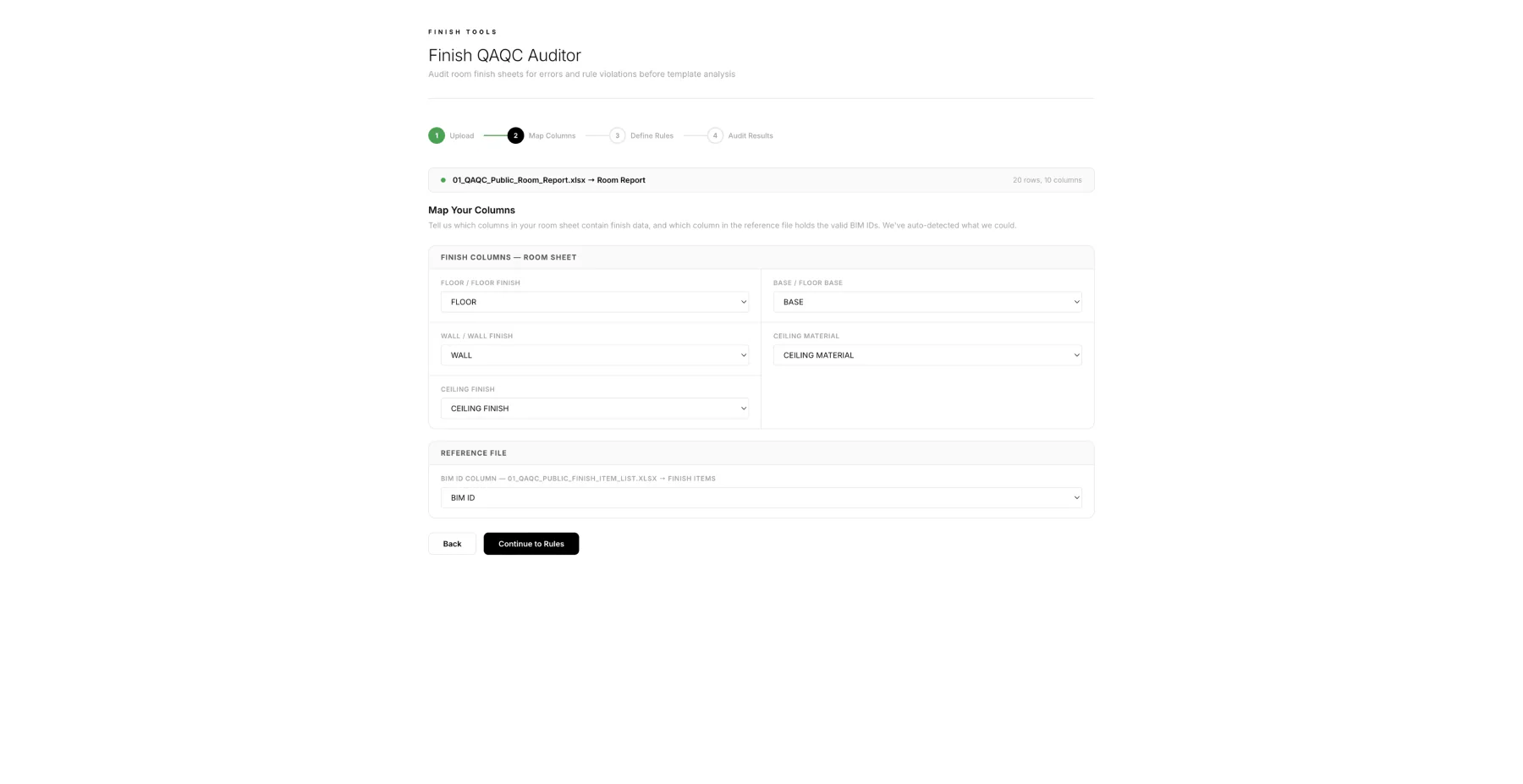
The QAQC tool turns a room finish sheet into a repeatable audit. The important move is that rules are visible: required fields, allowed values, duplicate values, and cross-column conditions can be checked before the data moves downstream.
Two-file upload: room report plus finish item reference.
Column mapping keeps the tool tolerant of real spreadsheet naming.
Rules are editable before the audit runs.
The export carries the review back into Excel, not just a dashboard state.
Finish Template Analyzer
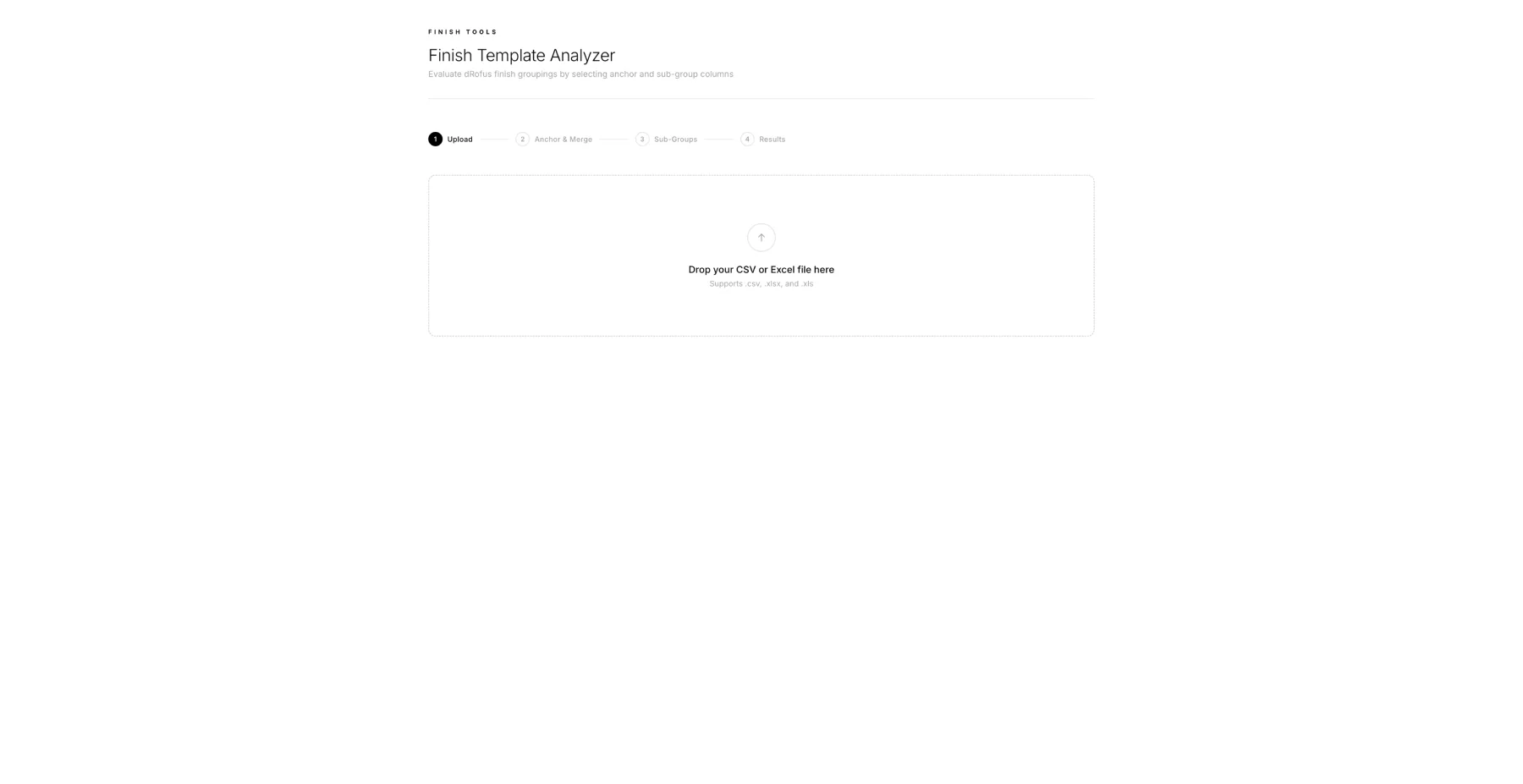
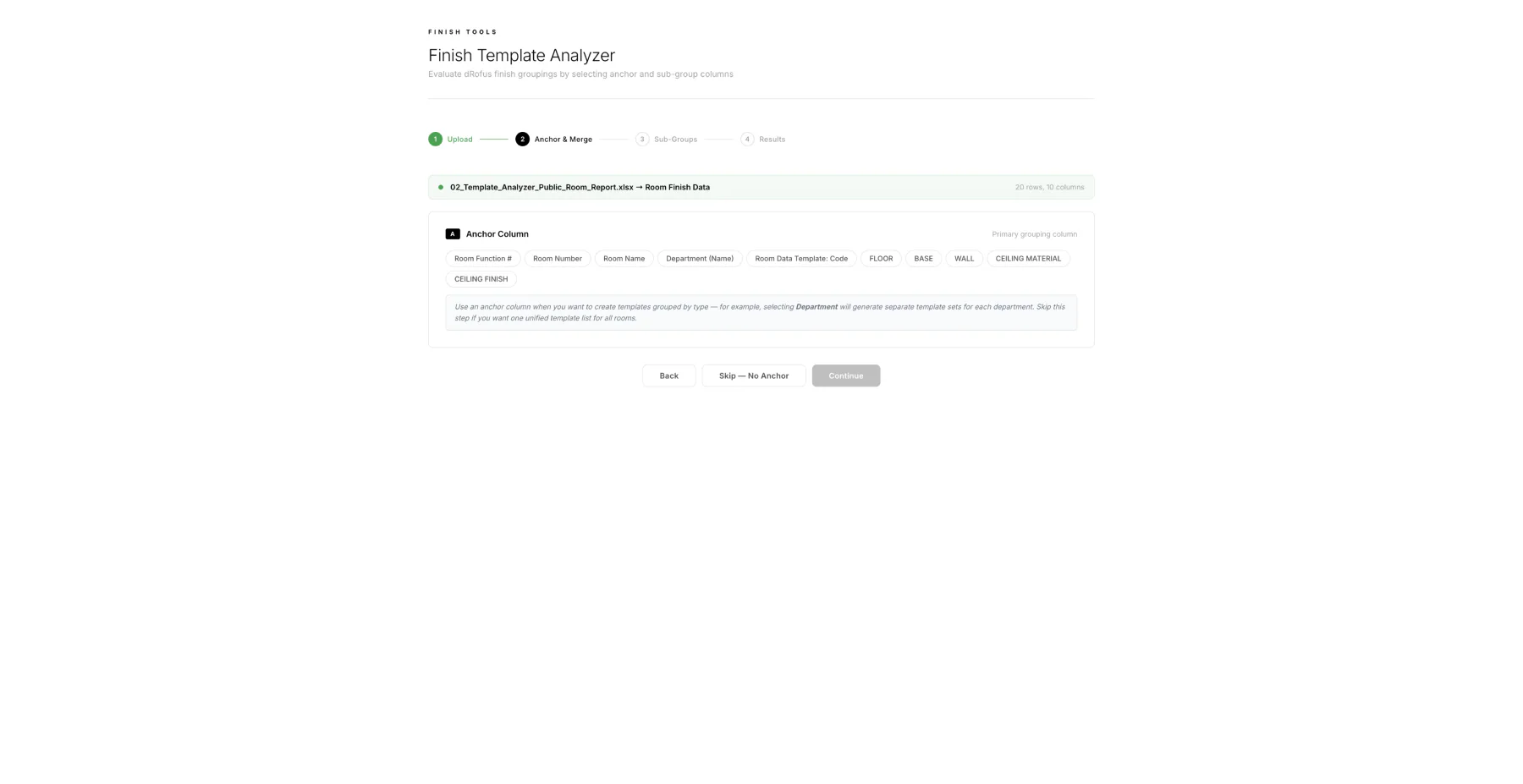
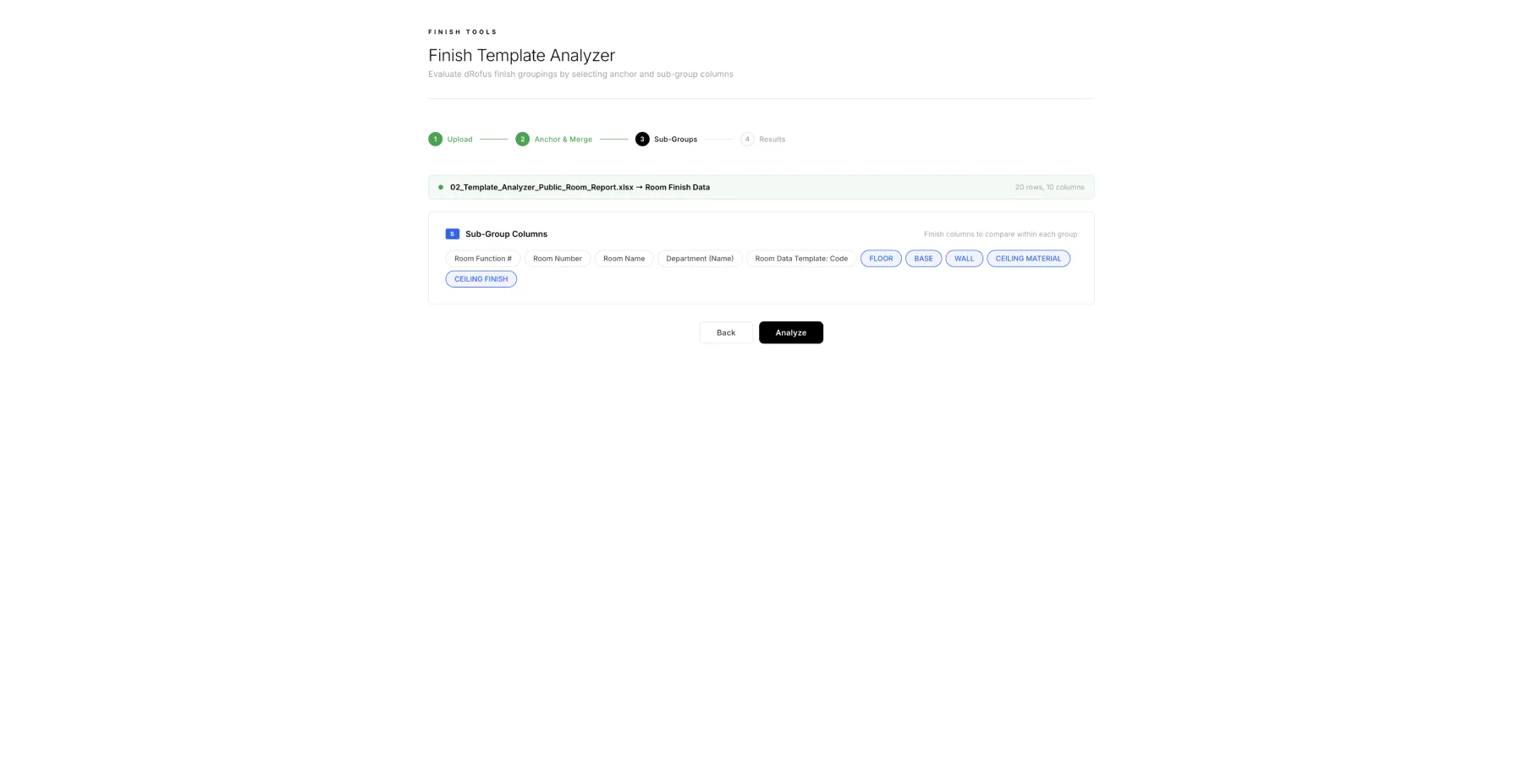
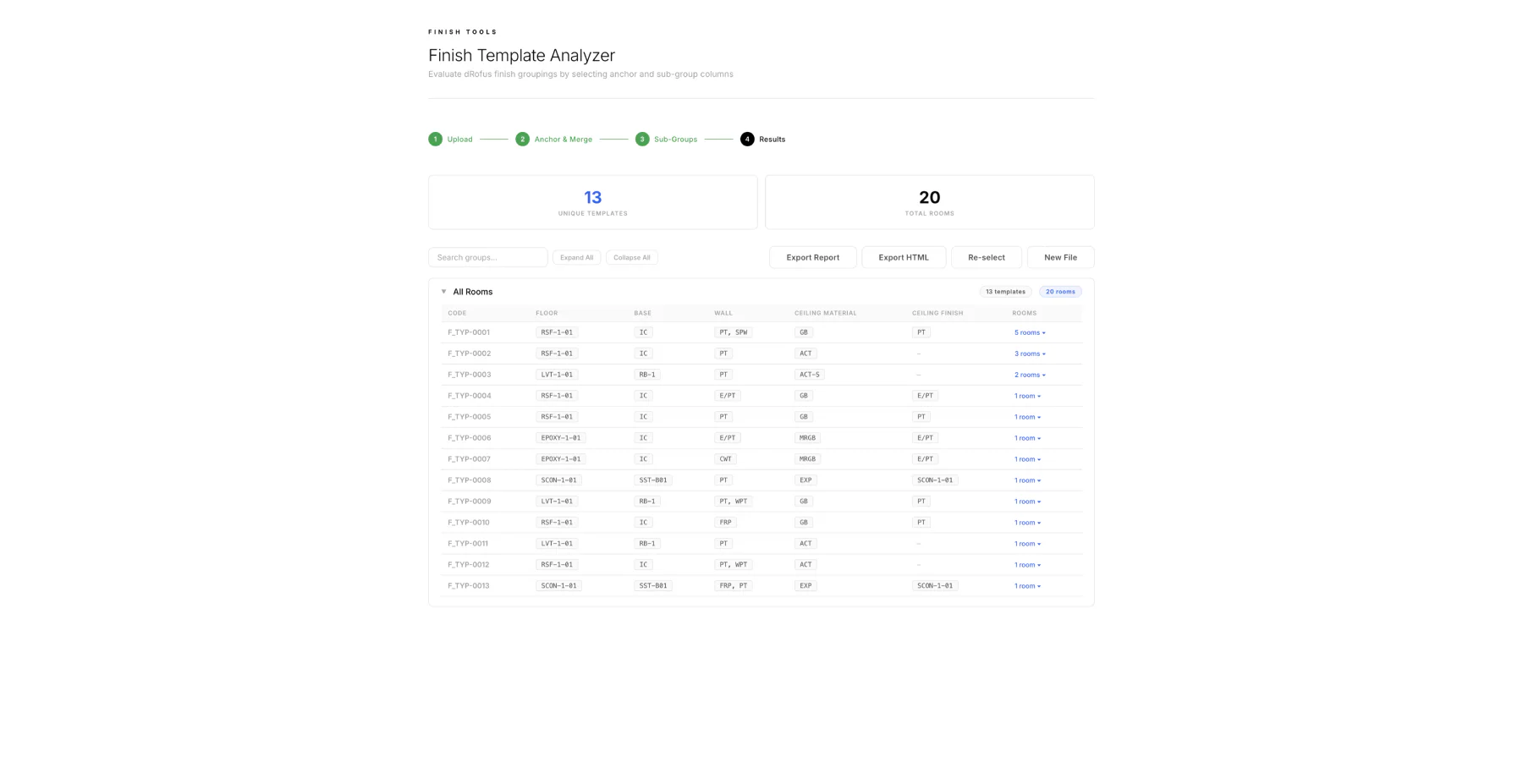
The template analyzer looks for repeated finish combinations. That matters because a large room schedule can hide duplication, drift, and unnecessary template sprawl.
Upload a room finish report.
Choose the anchor columns and finish columns.
Group repeated combinations into a reviewable set.
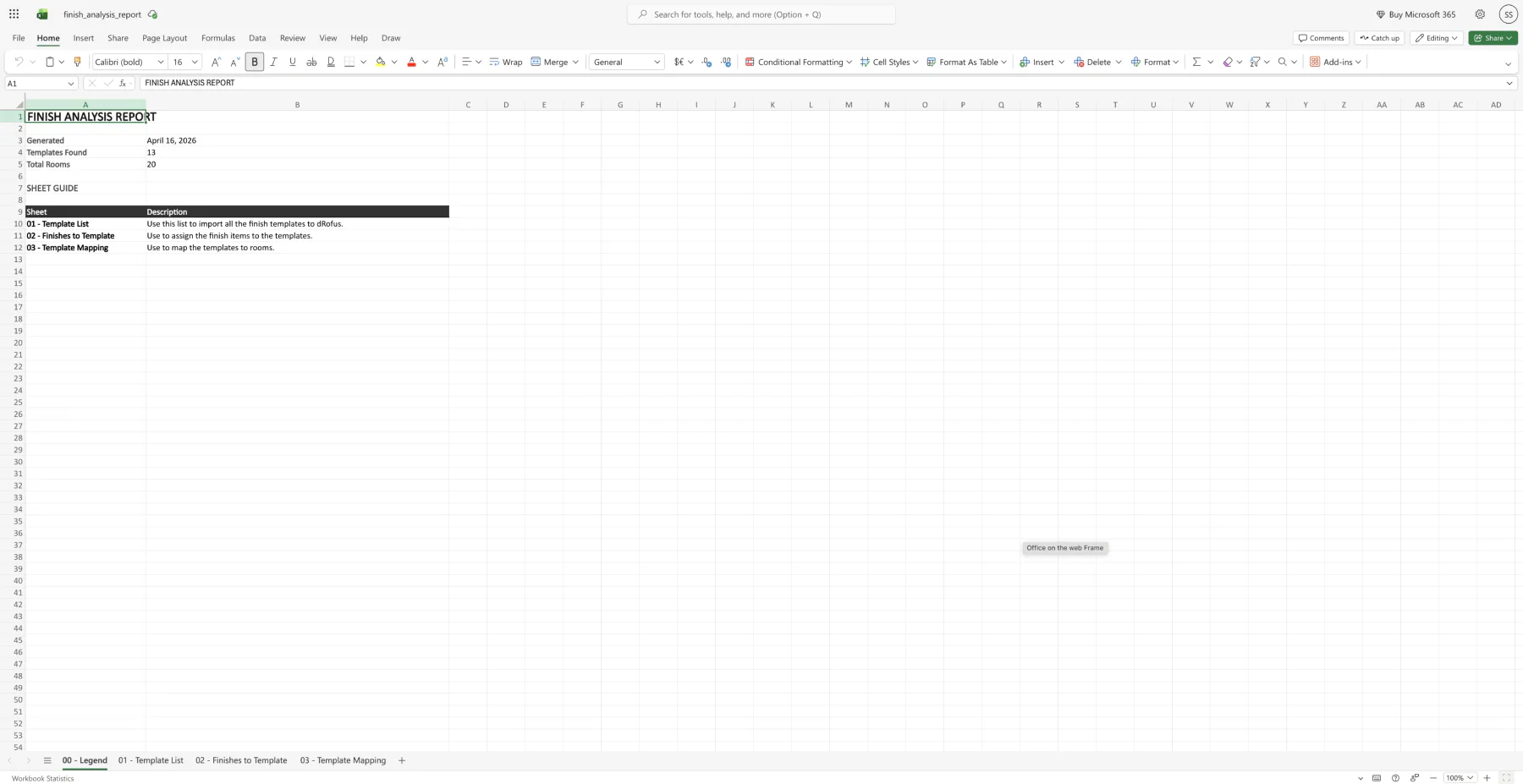
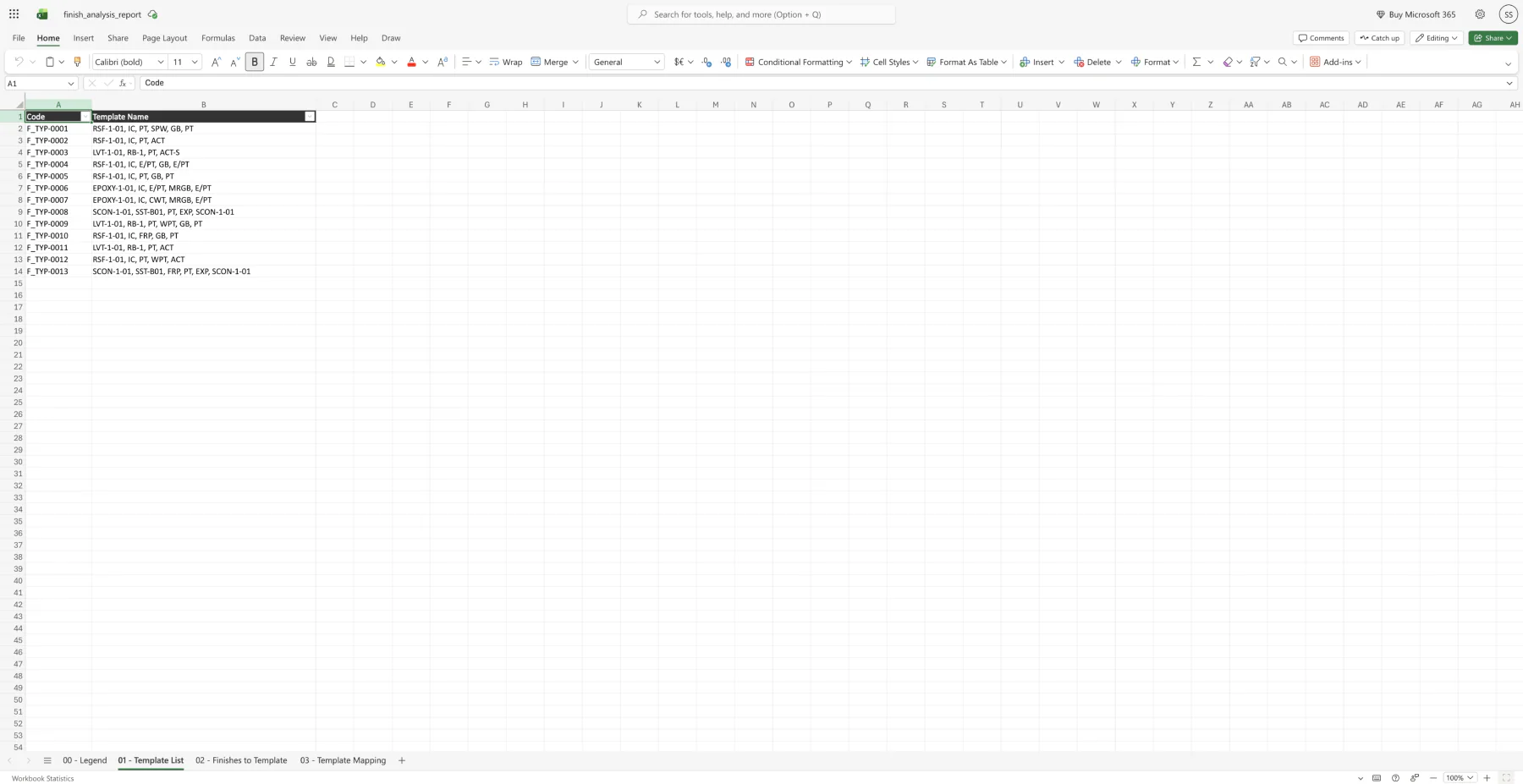
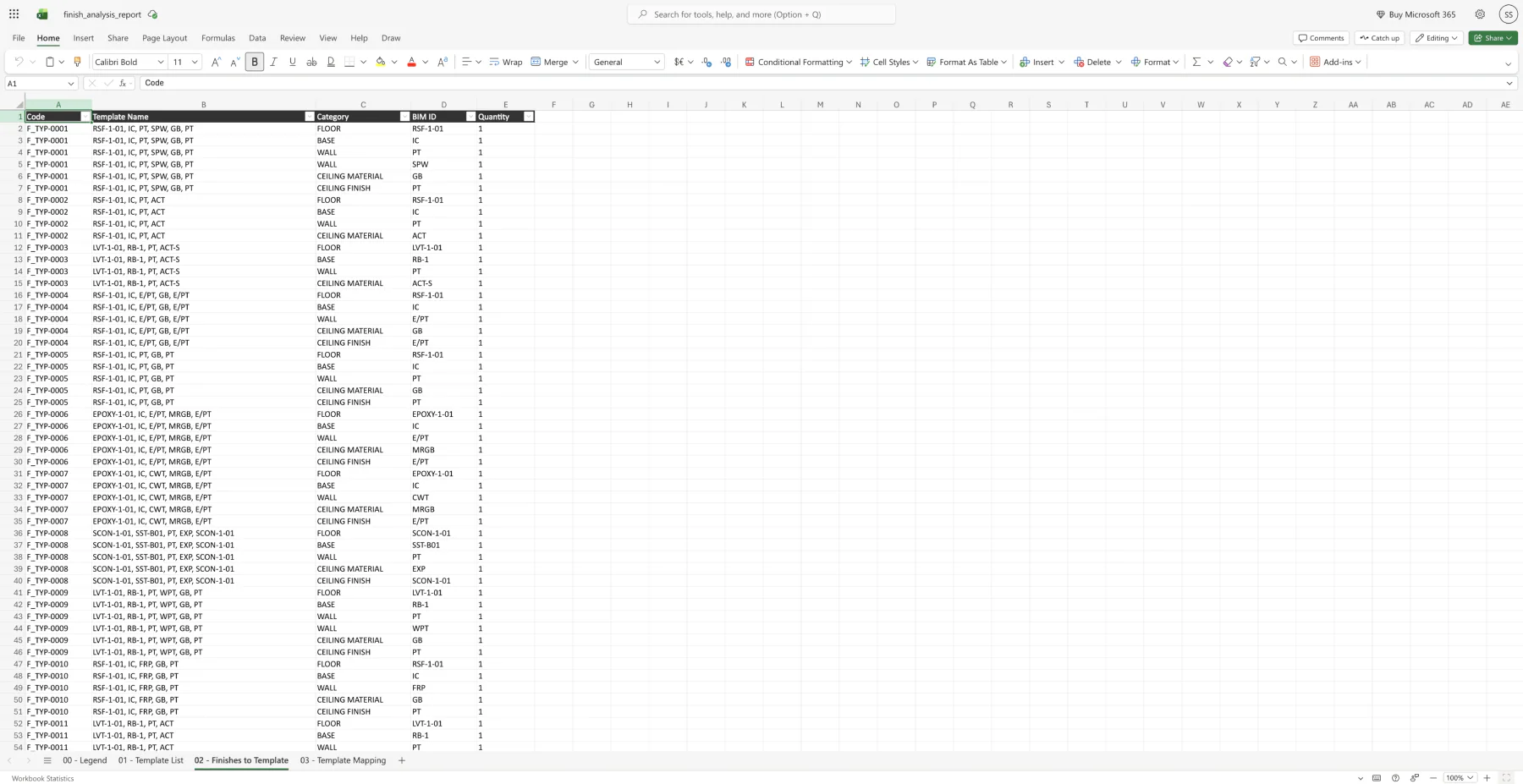
Export summary, group, room, and raw-data views.
Template Finder
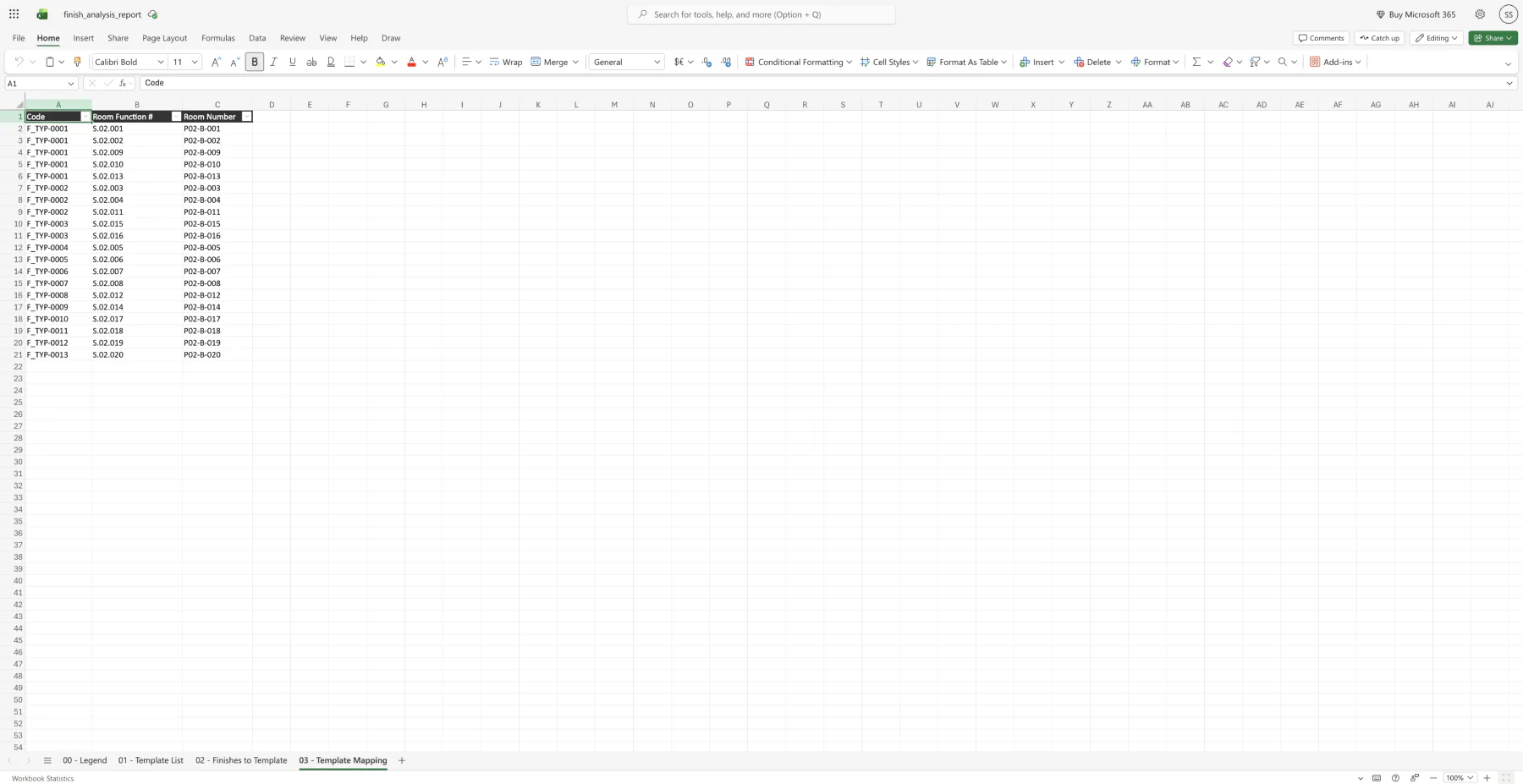
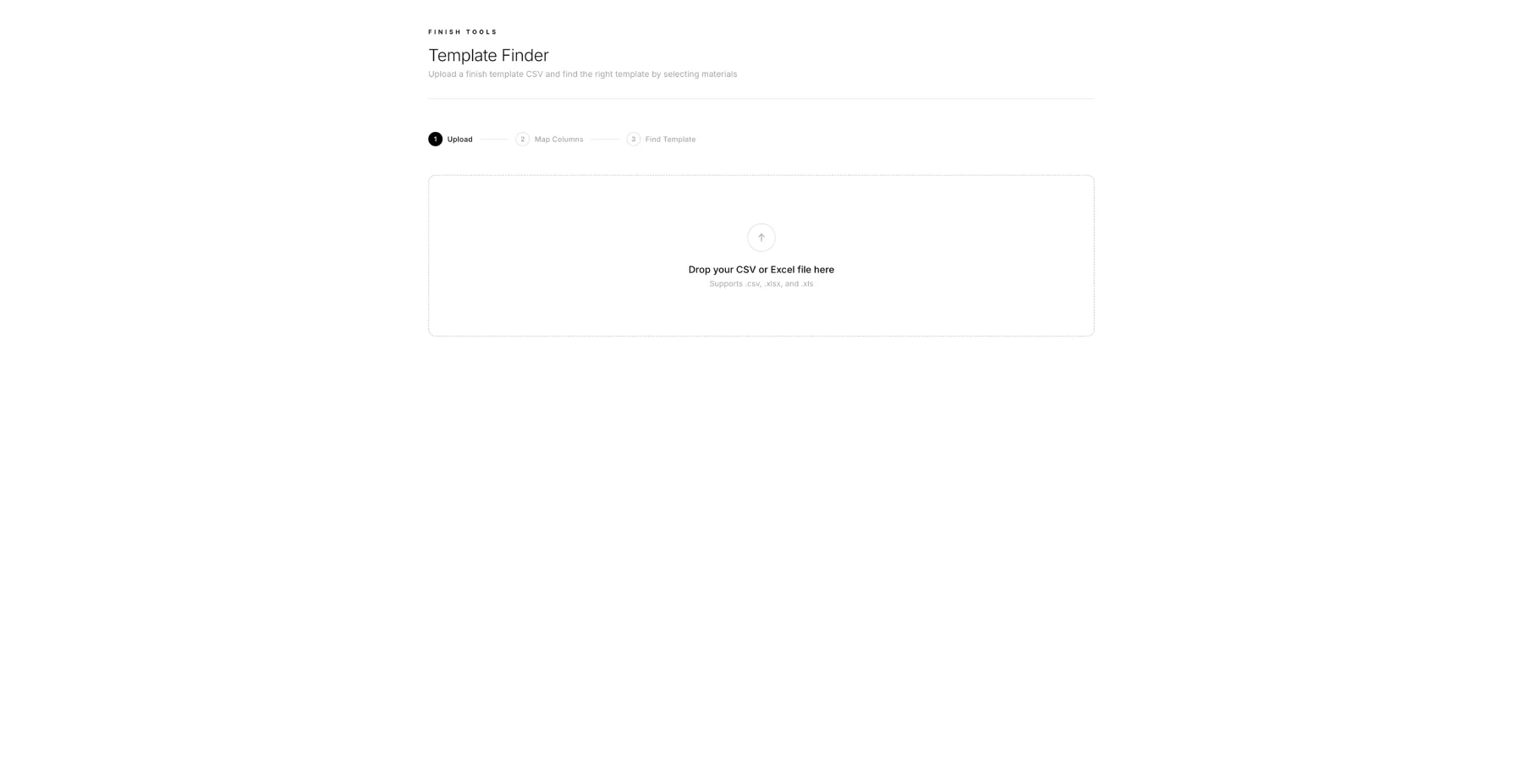
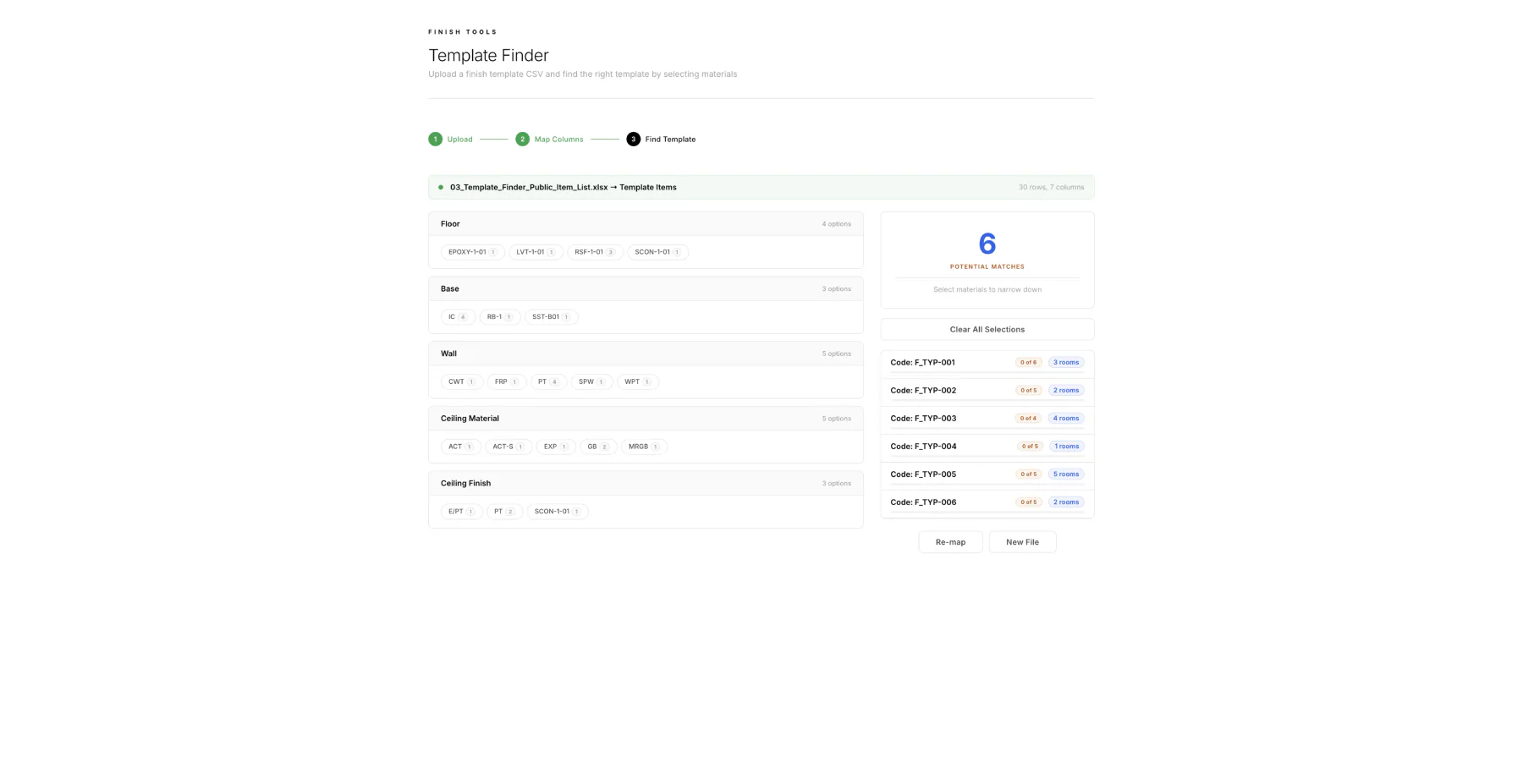
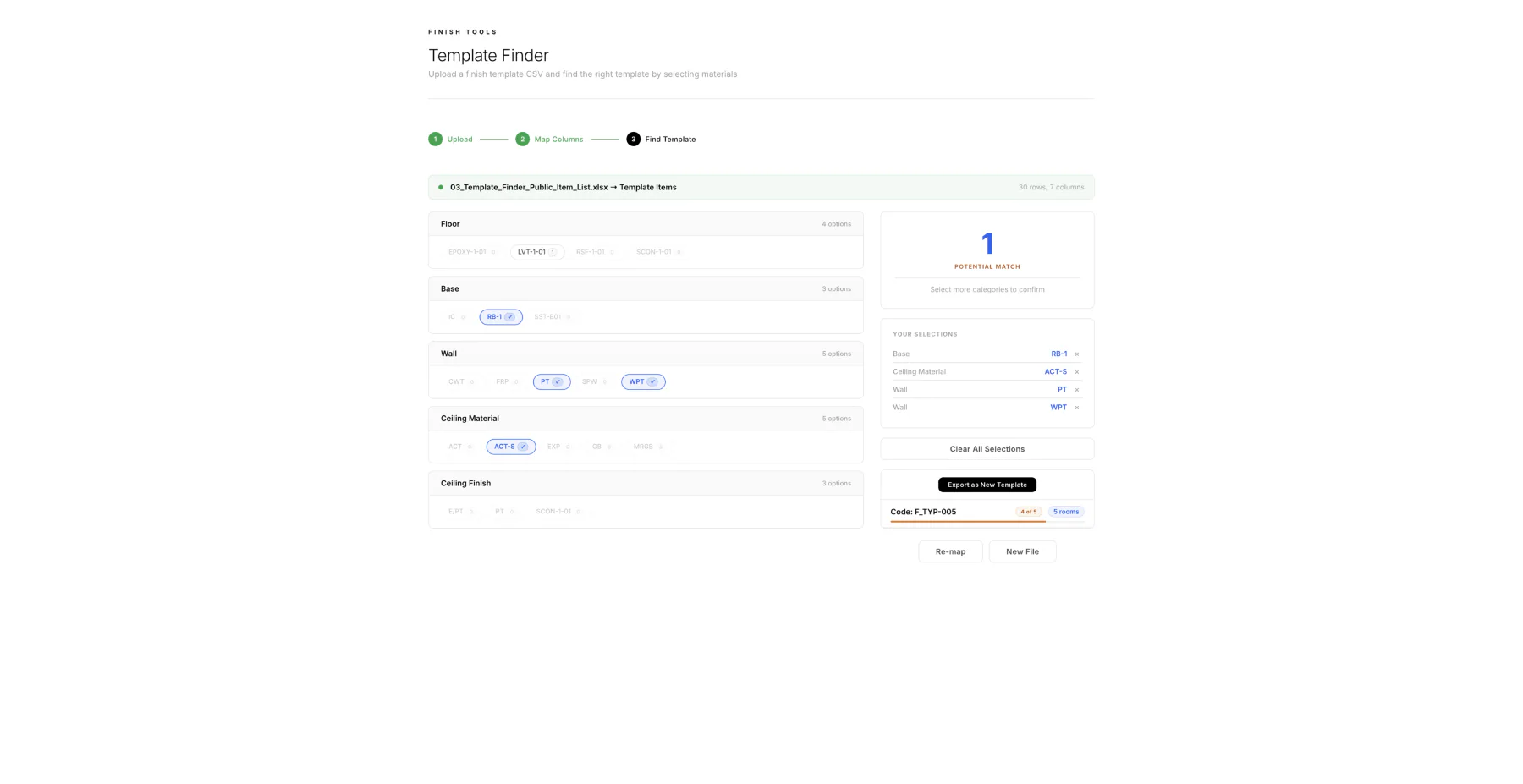
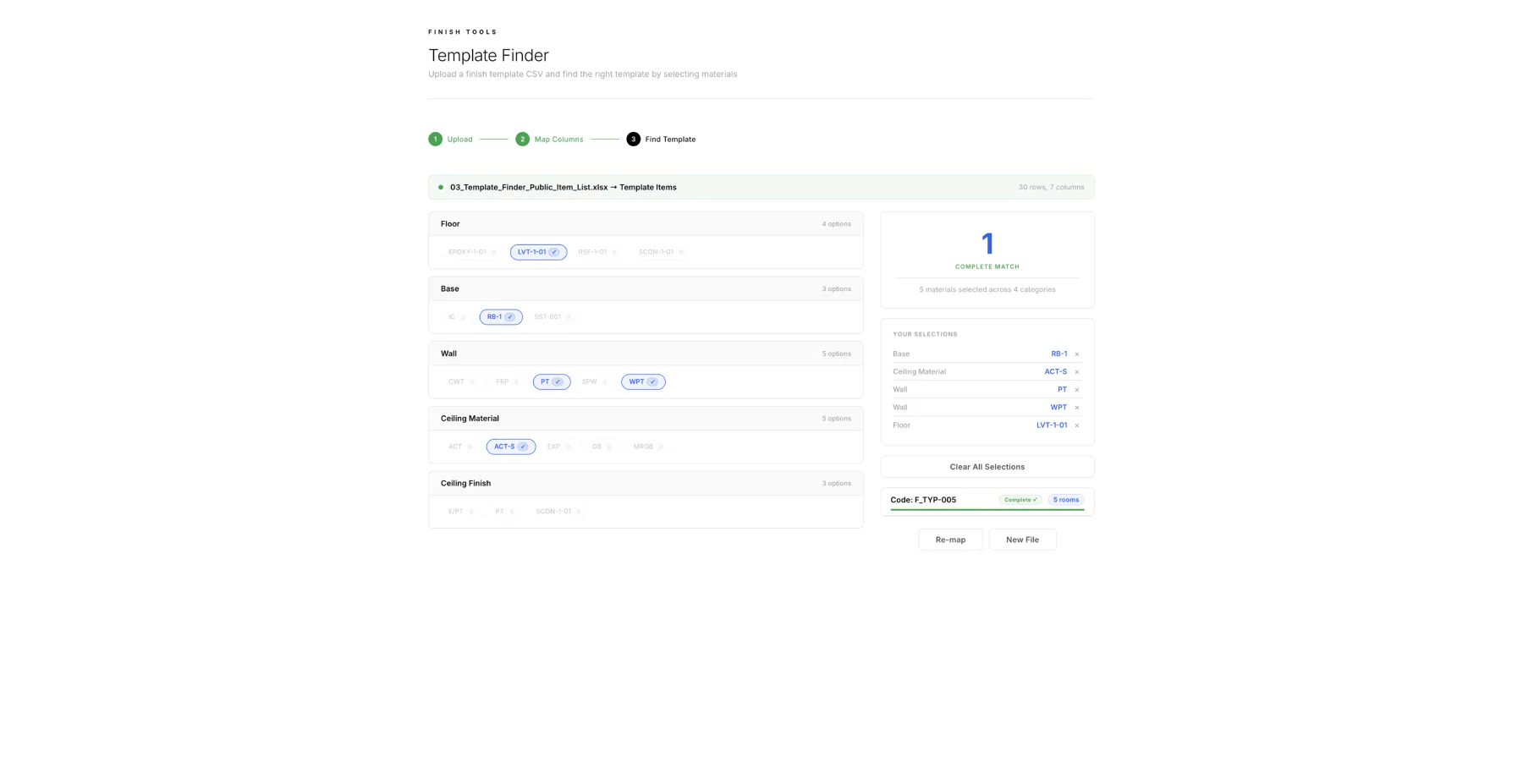
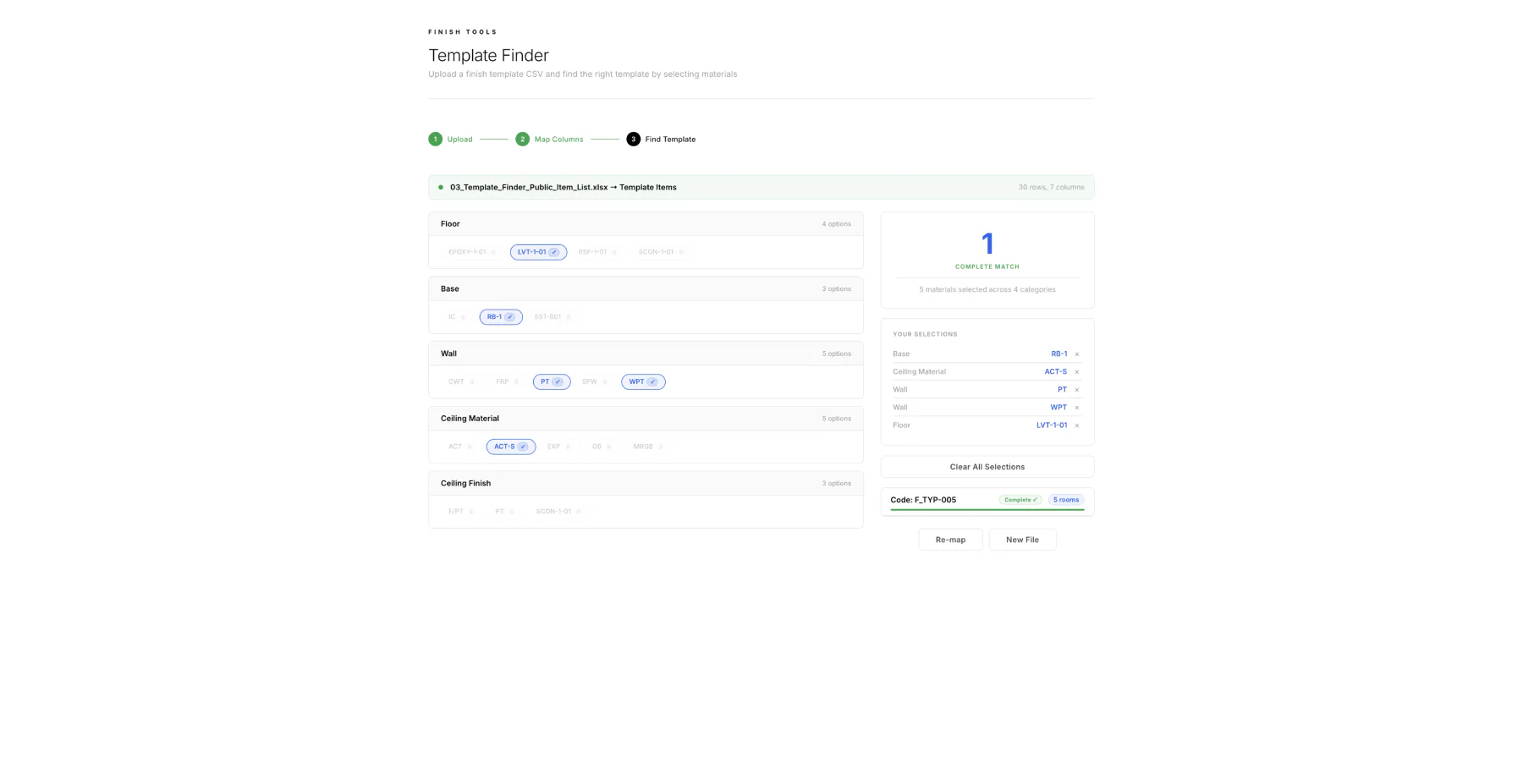
The template finder is a meeting tool. Instead of digging through a long template workbook, the user selects known materials and the tool narrows the matching room template in real time.
Upload the public template item list.
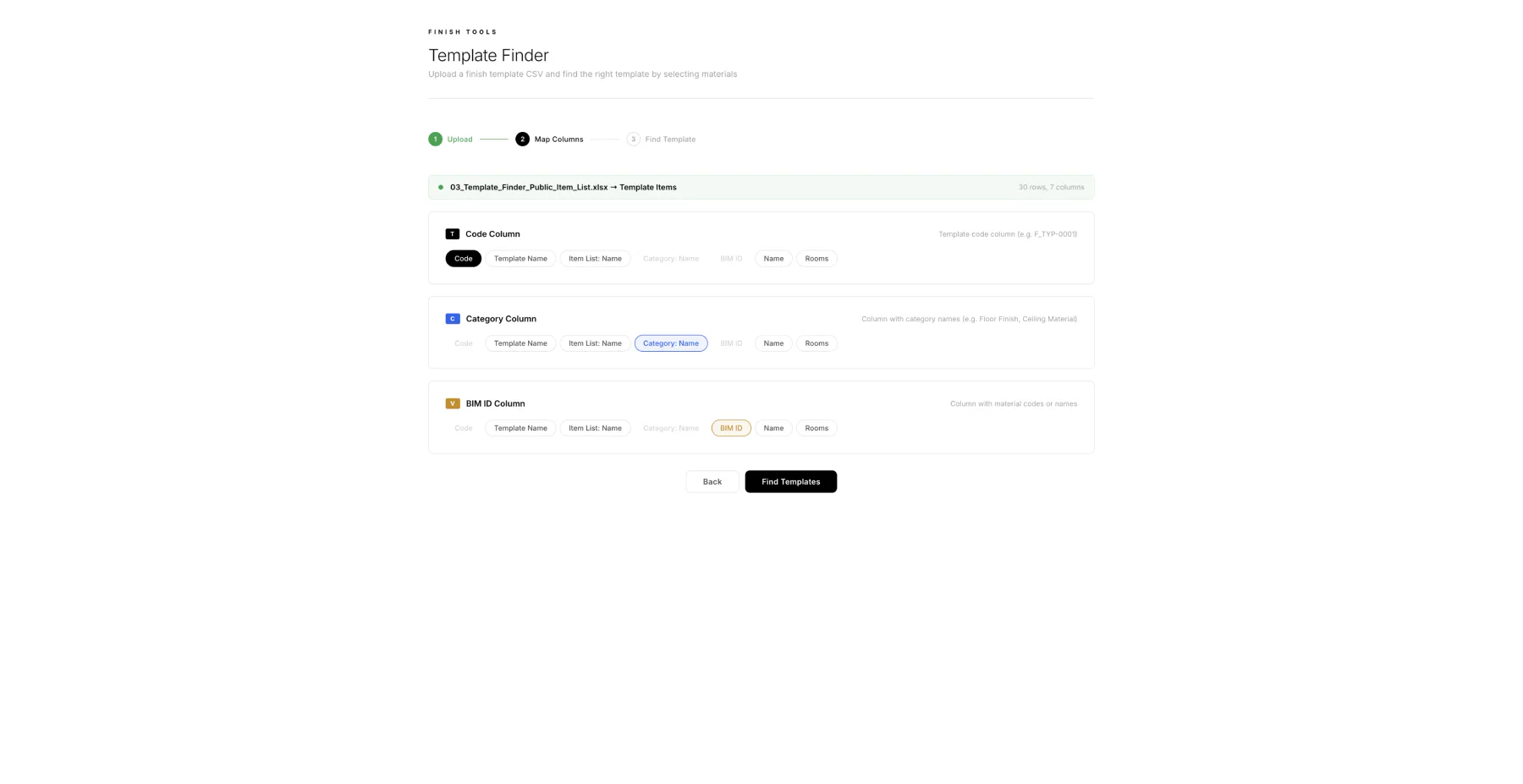
Map template code, category, and BIM ID columns.
Select finish values across floor, base, wall, and ceiling categories.
Narrow from many possible templates to the matching code.
Room Type Analyzer
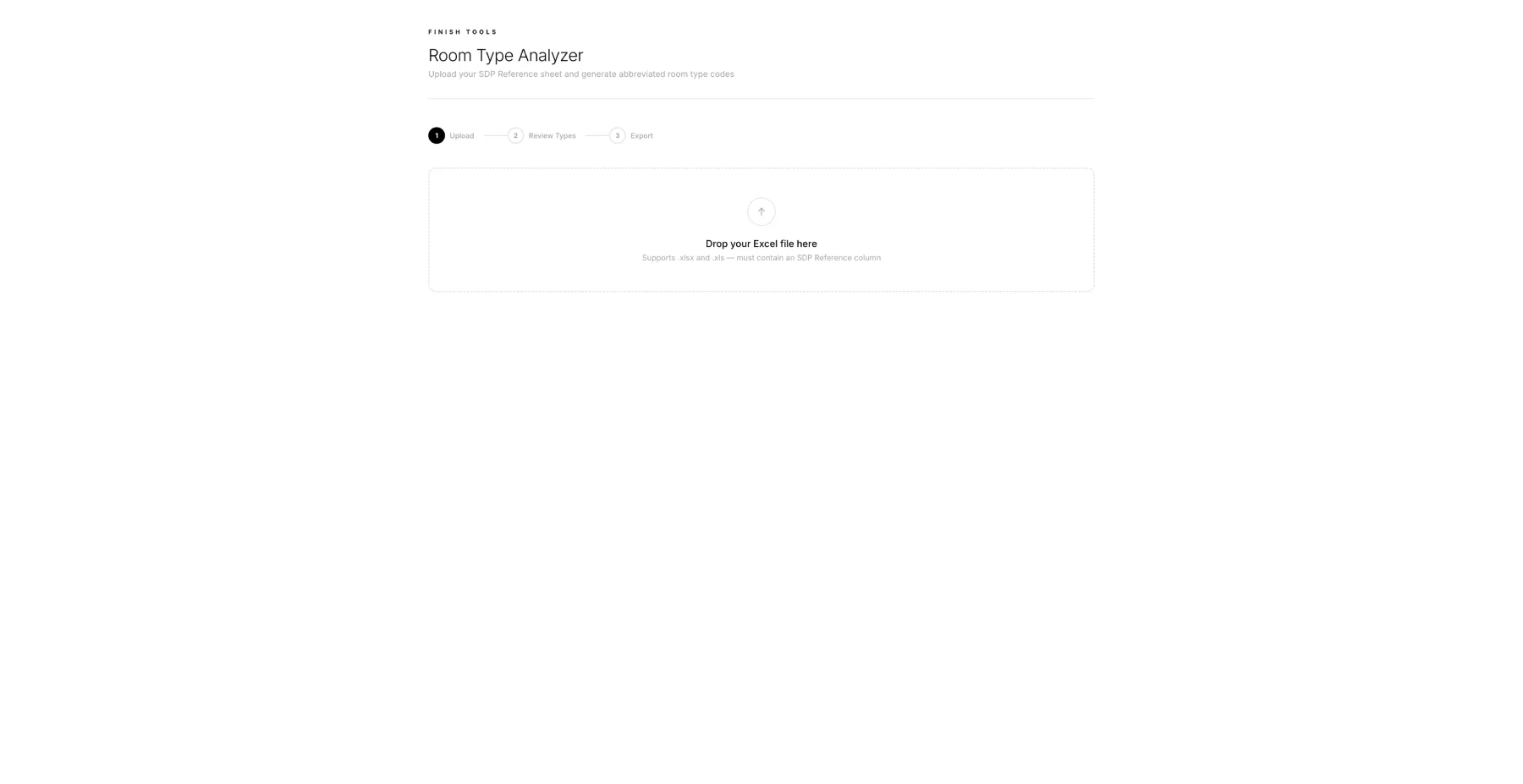
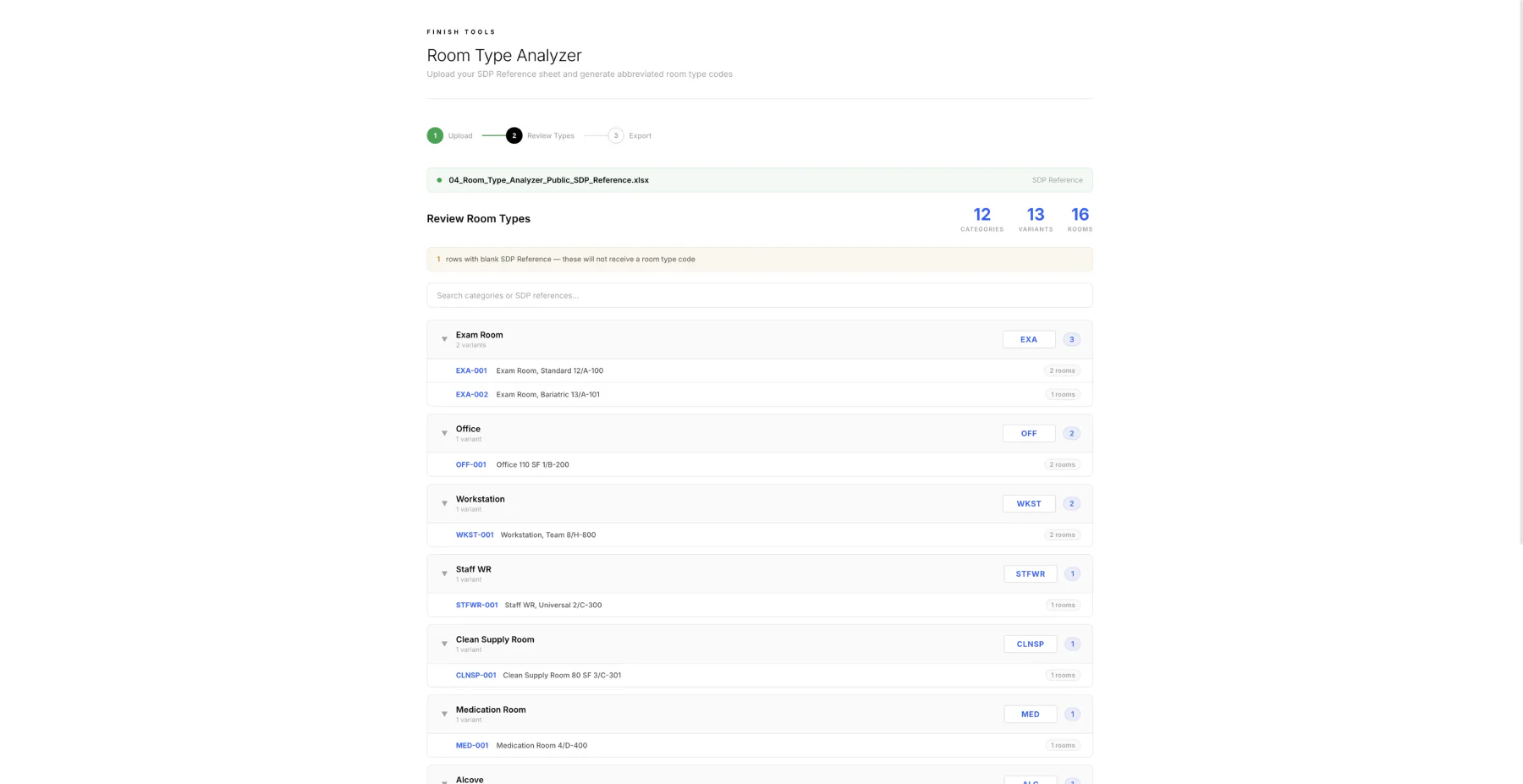
The room type analyzer turns messy reference strings into a reviewable code system. It parses the source text, groups variants, proposes abbreviations, and then lets a human review before export.
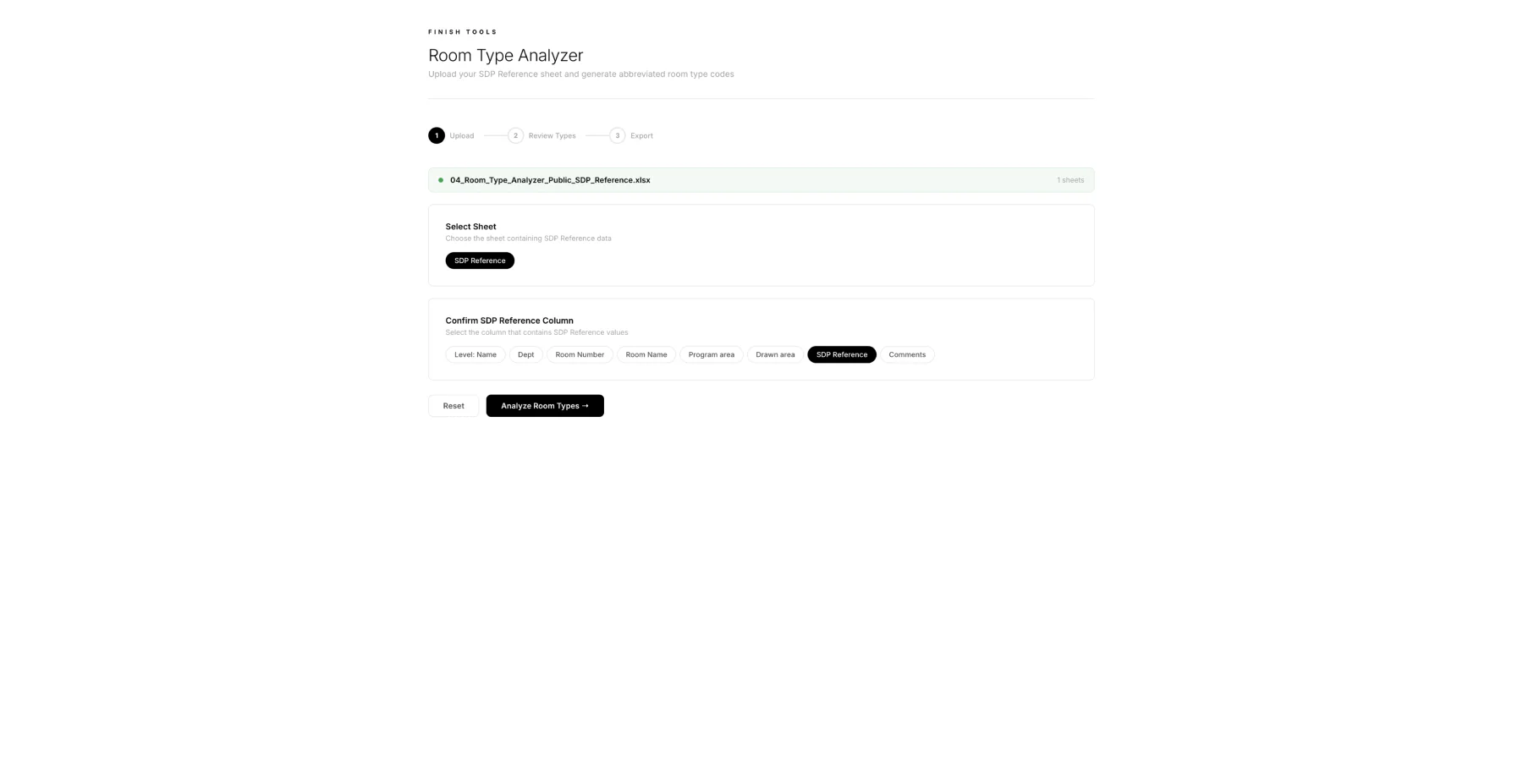
Upload the SDP reference workbook.
Select the columns that carry reference and room identity.
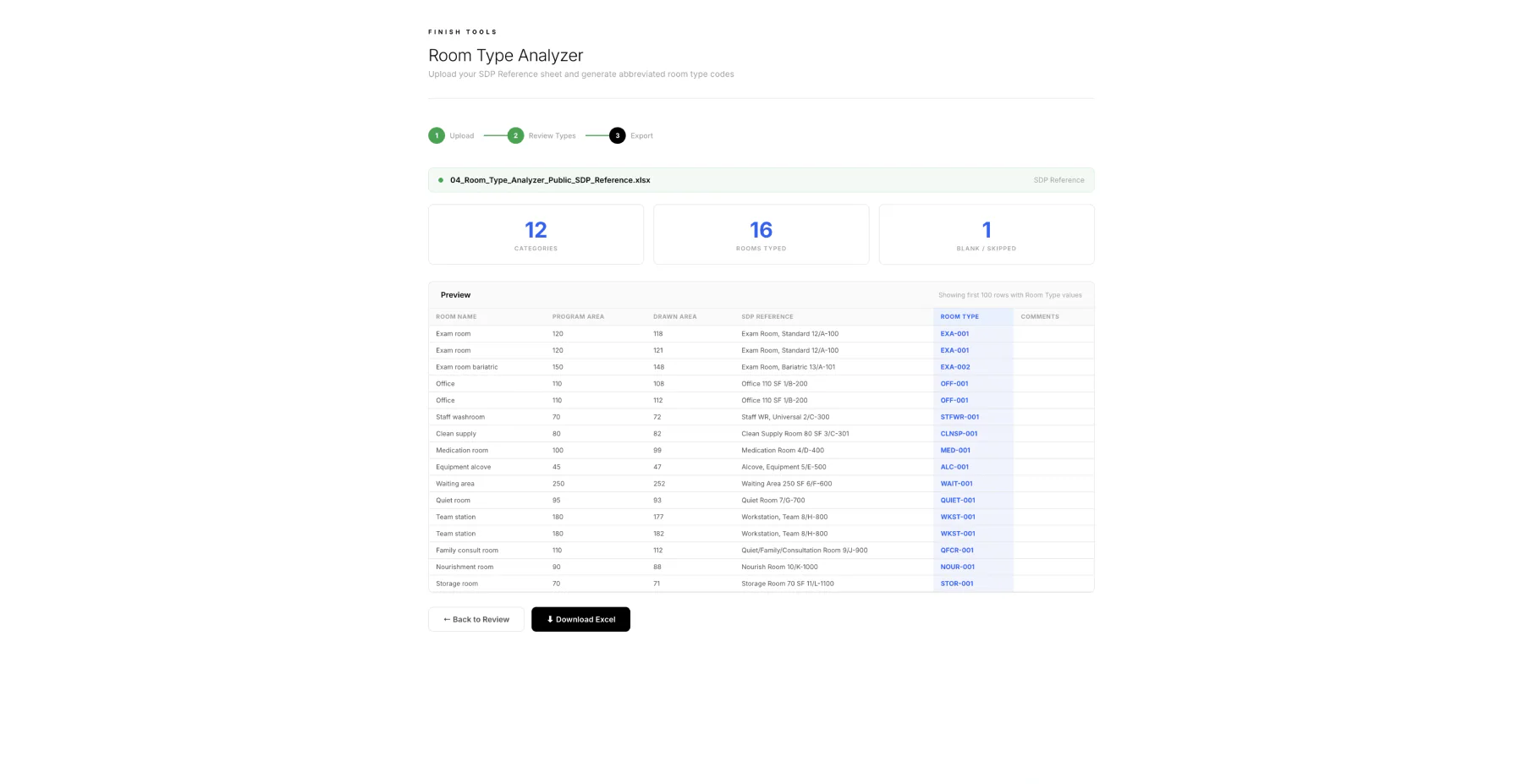
Generate room-type abbreviations from repeated references.
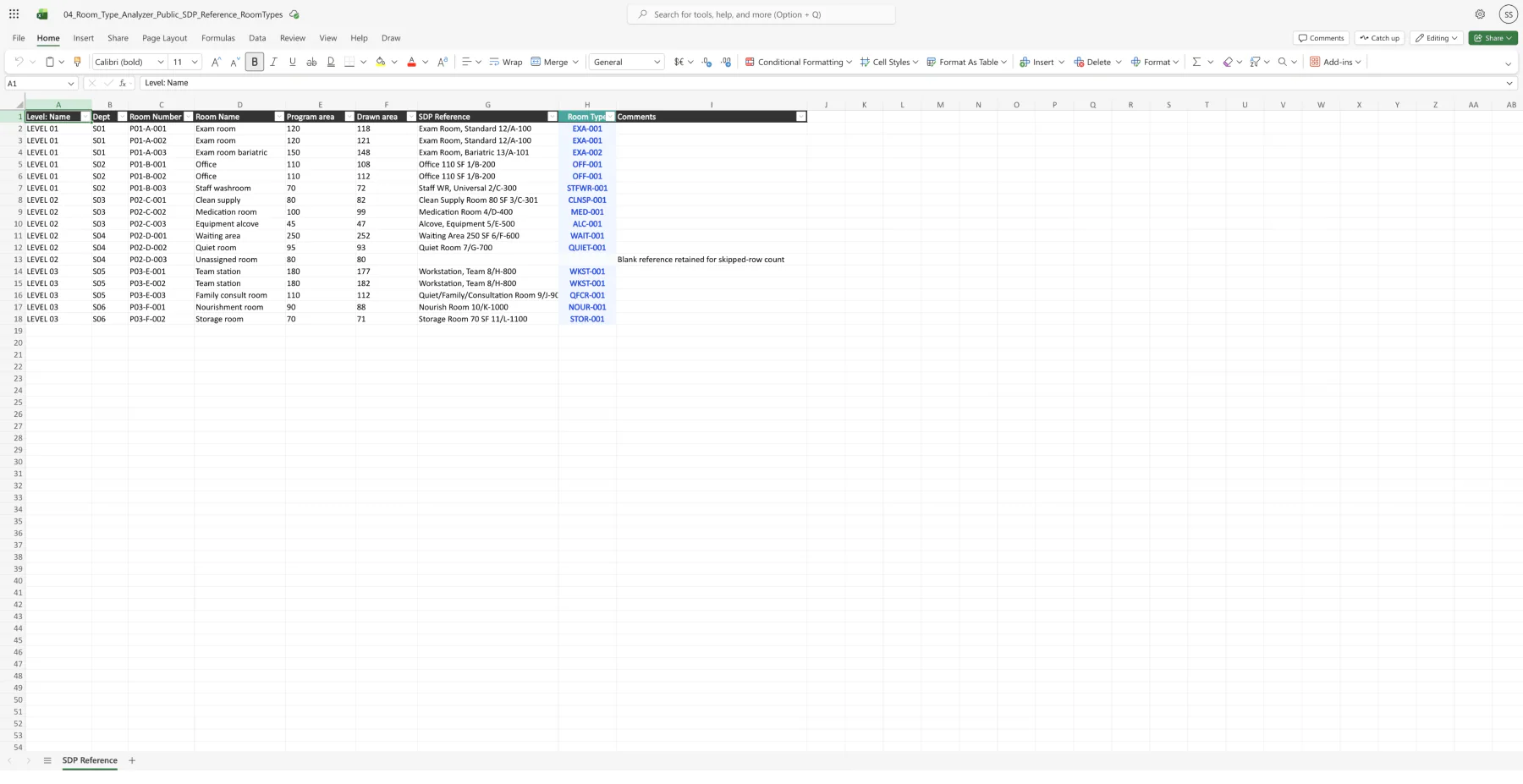
Export the codes back into a spreadsheet the team can use.
Column Comparisor
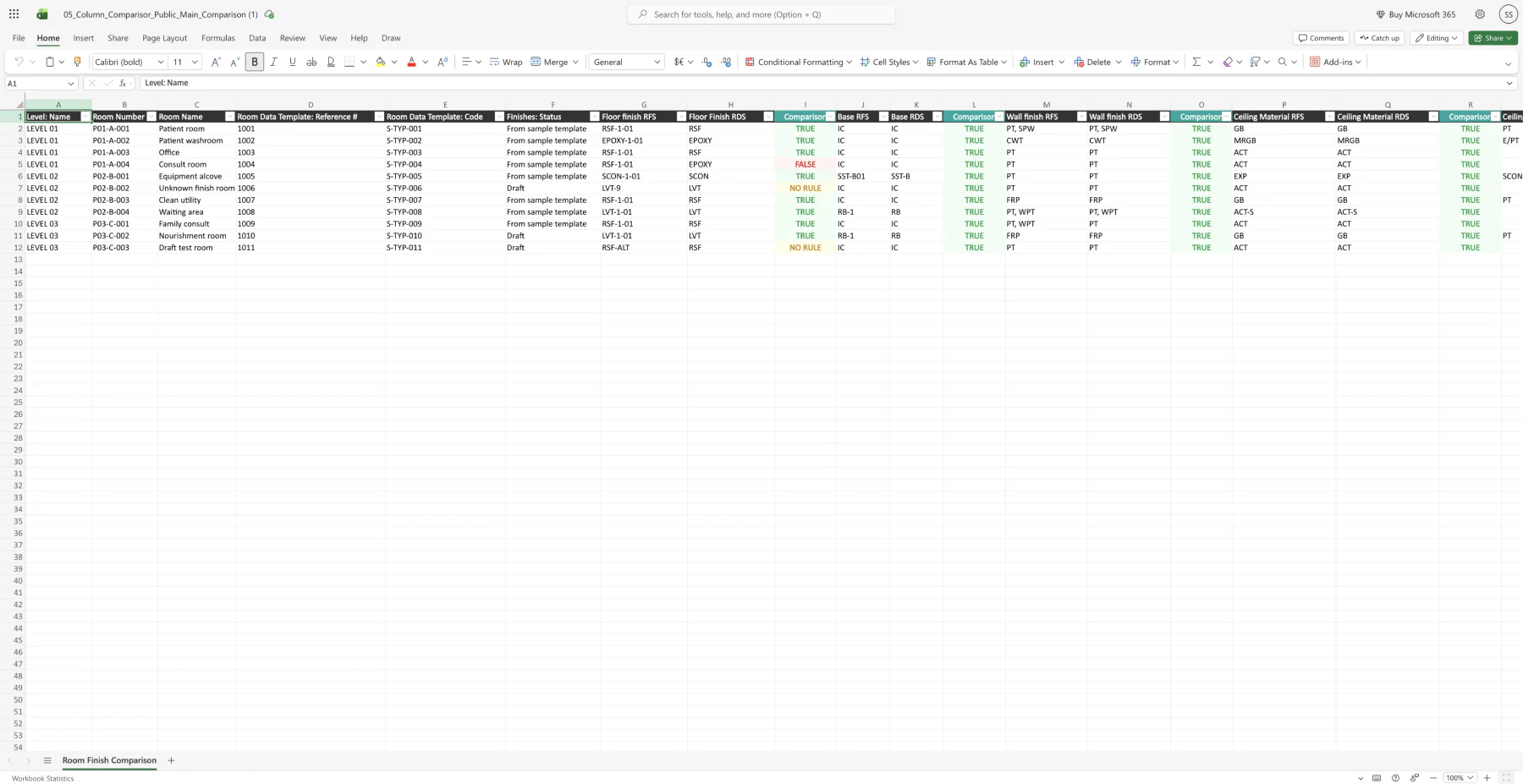
The column comparisor checks phase-to-phase finish values against a rule file. It is useful when two columns should not match literally, but should map correctly through an approved relationship.
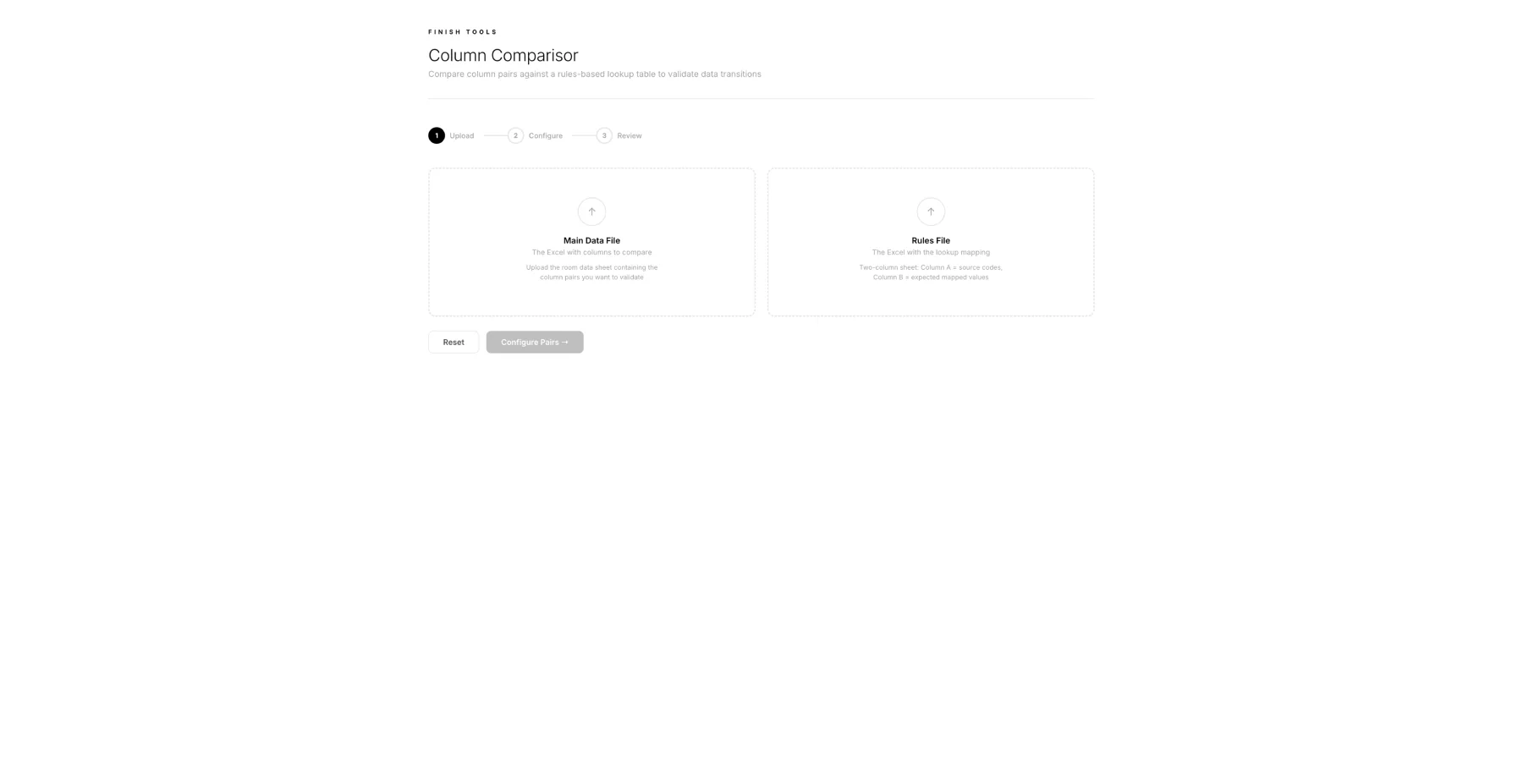
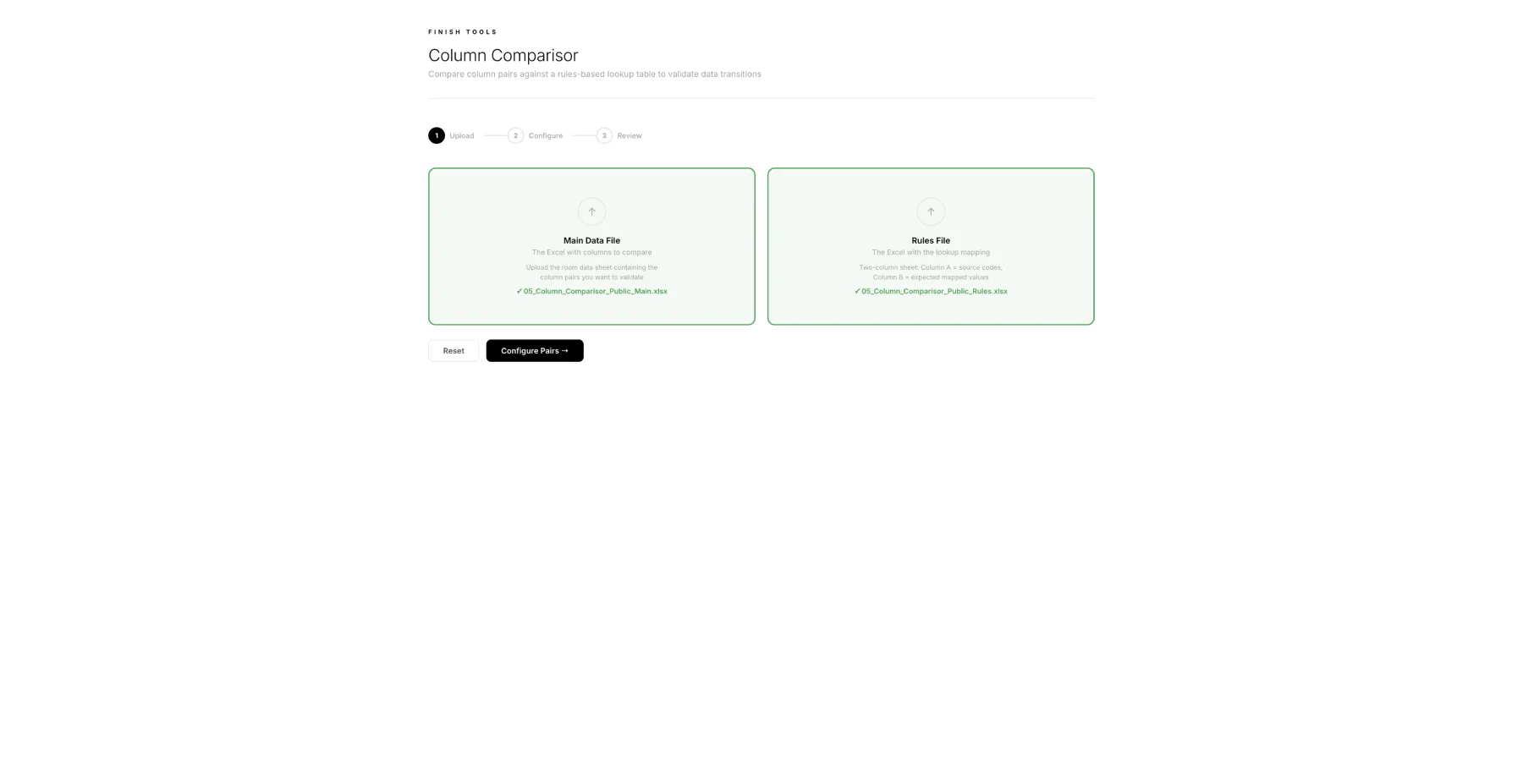
Upload a main comparison workbook plus a two-column rules file.
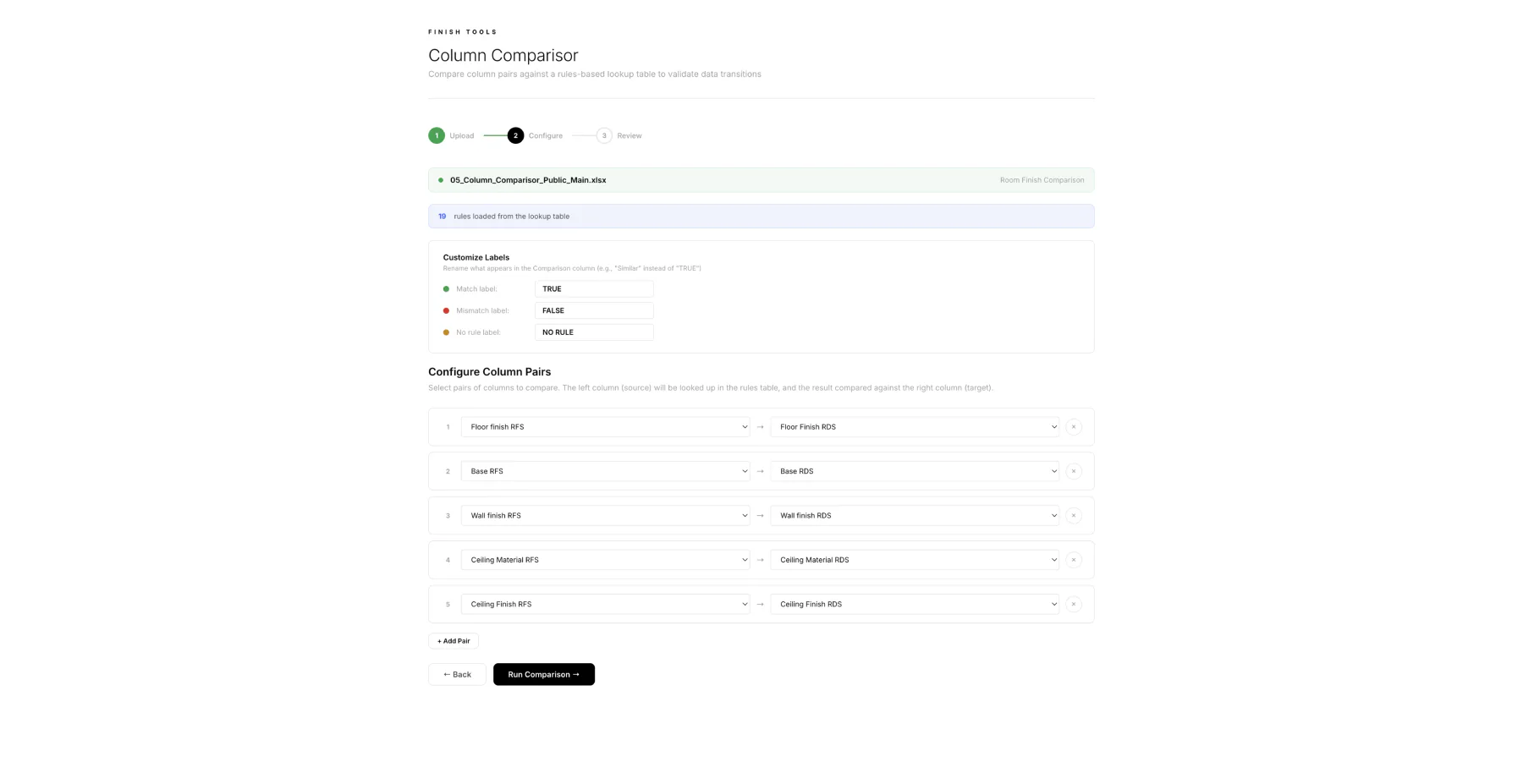
Configure which source and target columns should be checked together.
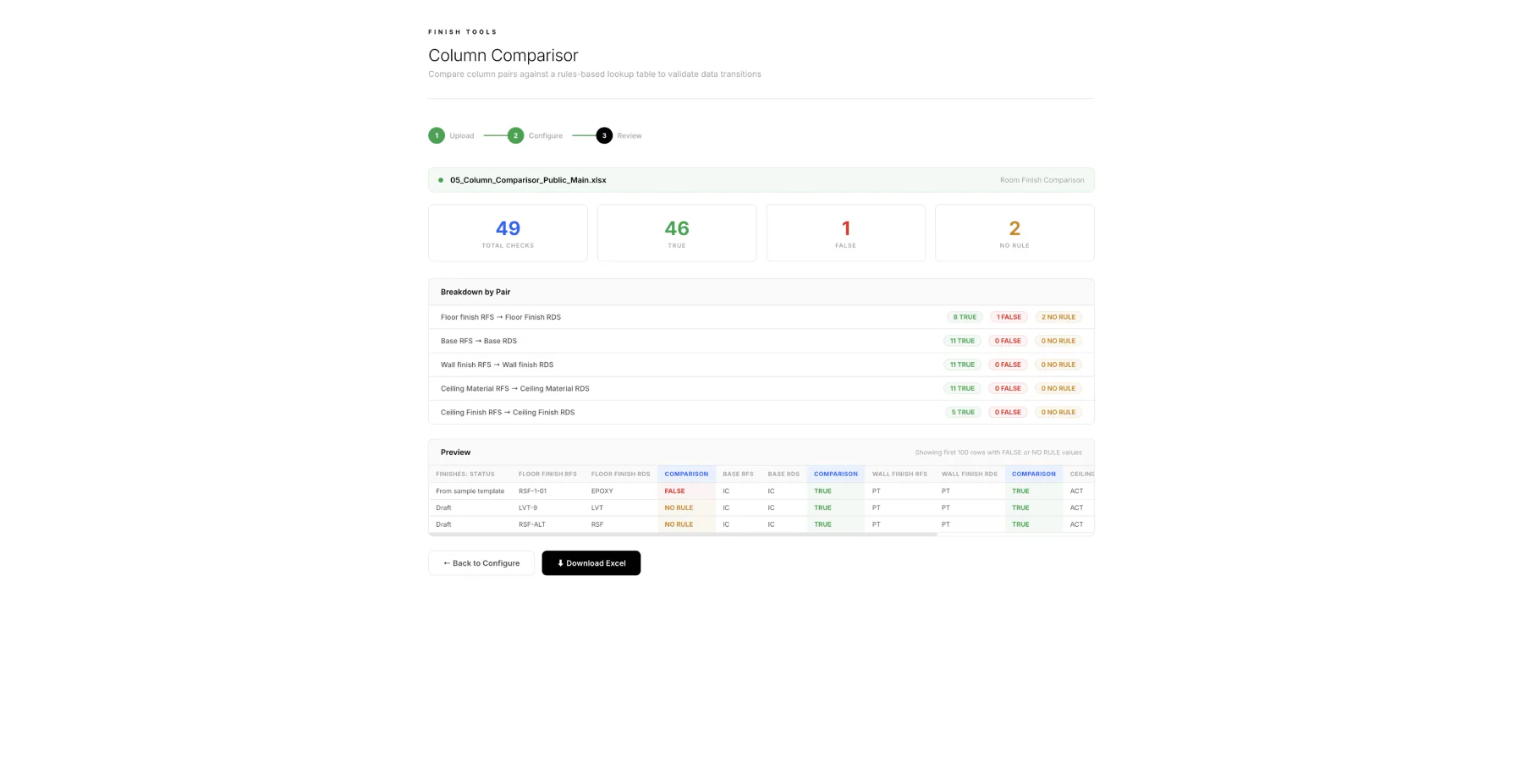
Review match, mismatch, and no-rule counts before export.
Export a marked-up workbook so the comparison can be reviewed in Excel.
Project-specific coordination pain can become tools a team actually uses.
The work depended on product judgment: understand the messy source files, avoid overengineering, keep data local, build the narrow workflow, and return results in the format the team already trusts.